
How to scan both sides of an ID on one page on iPhone
To scan the front and back of an ID onto one page on iPhone, start an ID card scan in 1Scanner. Capture the front, turn the card over, then capture the back. Open the finished page before you send it. Both sides should be visible together, with the front above the back.
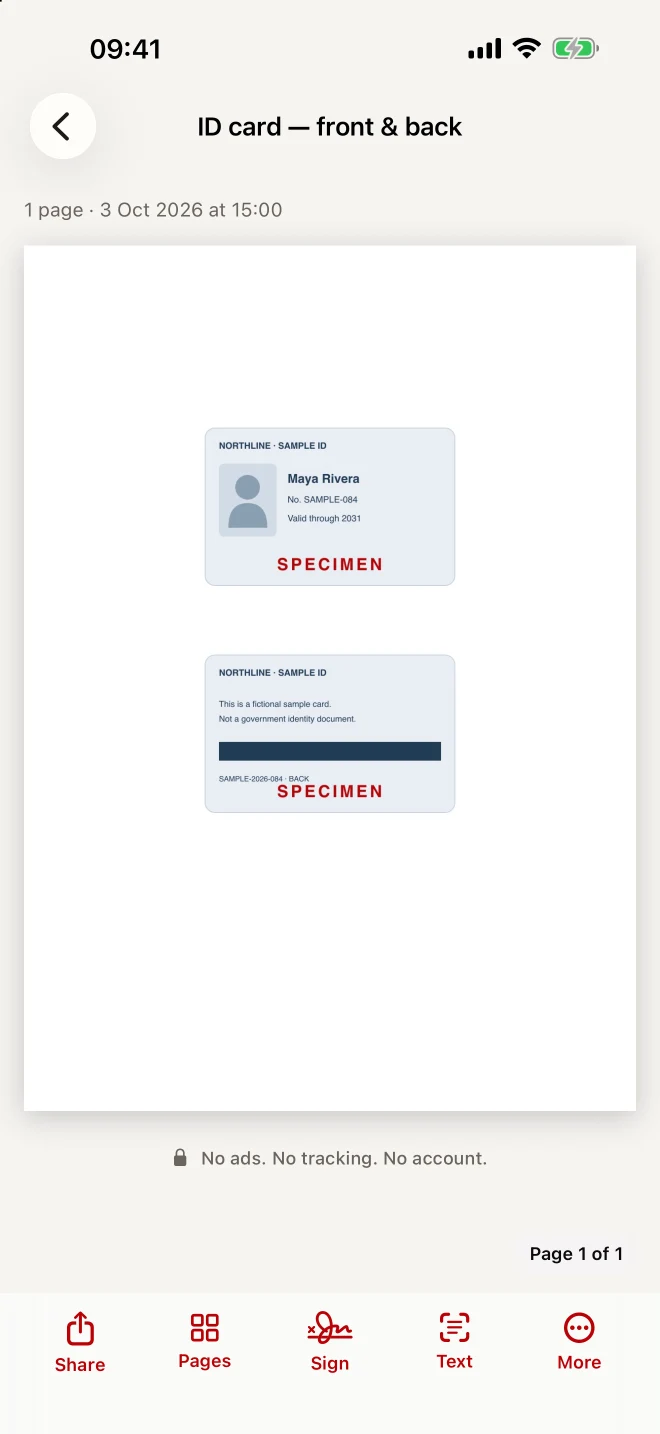
Open the sample PDF (217 KB). The exported example has one A4 page and an optional watermark addressed to a fictional bank.
How to capture both sides of your ID on iPhone
- Set the card on a plain, contrasting surface. Let all four corners show. If glare hides a name or number on a glossy card, move the light or turn the card slightly before capturing it.
- Use the ID card scan for both sides. Keep the entire front in view. After capturing it, turn the same card over and capture the back. Leave the phone in the same orientation so the two sides read the same way up.
- Review the finished sheet. Zoom in on the smallest print on each side. Check the edges for missing text. If the PDF preview shows two pages with one side on each, start a new ID card scan to put the pair on one sheet.
- Save or share the PDF. Open the saved file and check the page count. If you need a paper copy, check the sheet size and print scale in the printer preview as well.
Watch the scan from start to finish (18 seconds)
The demo camera supplies the sample card. The app captures its front and back, shows the two sides together and saves the page. You can also watch on YouTube.
What size will the ID copy be?
1Scanner lays out each side at standard ID-1 card size, about 85.6 × 54 mm. A larger paper ID will be reduced to that size. For a recipient who requires the original dimensions, check the instructions before using this layout.
| Sample page | The downloadable PDF above is 595 × 842 PDF points (A4). The app uses Letter in regions including the US and Canada, and A4 in others. |
|---|---|
| Print scale | When scale matters, use actual size or 100% if the print dialog offers it. Measure the printed card against your original before handing it in. |
| Free use | Every feature is available with a limit of 20 scanned pages per local day. Premium removes that limit. |
| Privacy | The app processes the scan on your iPhone. No account, ads or tracking. You choose where to save or send the finished copy. |
Questions about making a one-page ID copy
Can I just scan the ID twice in Notes?
Apple’s built-in scanner is handy when the recipient accepts a document with several pages. Capturing each side as a separate page in Notes gives you two pages in one document. For a one-sheet requirement, use a layout that places the two sides on the same page. Apple’s scanning instructions
Will combining two PDF pages put the ID front and back on one sheet?
A standard PDF merge puts one page after another. Check the finished file at page view. Both sides need to appear together under a single page number.
Should I add a watermark to my ID copy?
Check with the recipient first. If they accept a watermark, you can mark the copy with their name and the purpose, then check that every required detail is still readable. Some recipients require an unmarked copy.
Scan an ID card with 1Scanner
Both sides stay on your iPhone until you choose to share.
Product details checked November 21, 2026. See 1Scanner for iPhone and iPad and its privacy policy.